Microsoft is retiring SMS sign-in codes: how to prepare your business
Microsoft is retiring its text message and phone call verification for most work accounts from February 2027. Here is what is changing, how to set up Microsoft Authenticator, and why a FIDO2 security key makes a useful backup.
If you sign in to your work email by entering your password and then typing a code sent to your phone by text, it is time to plan a change.
That extra check is called two-factor authentication, or 2FA. Microsoft also calls it multi-factor authentication, or MFA. The principle is simple: knowing your password should not be enough for someone to get into your account.
Microsoft is not removing that extra protection. It is retiring its own text message and automated phone call verification in Microsoft Entra ID, the service behind many Microsoft 365 work and school accounts.
What is changing, and when?
Microsoft's published timetable is:
- From 1 September 2026: users enabled for text message or phone call verification are being enabled for passkeys and may be prompted to register one when signing in.
- 1 February 2027: Microsoft-provided SMS and voice verification retires for most users. This includes internal guest accounts.
- 1 July 2027: the retirement extends to Global Administrators, the people with the highest level of control over a company's Microsoft setup, and external users.
These dates relate to work and school accounts using Microsoft Entra ID. They are not a blanket announcement that every personal Outlook.com or Hotmail account will lose text message verification on the same day.
There is also an important distinction: Microsoft is ending its own delivery of these texts and calls. Organisations that still need them may be able to arrange a separate provider through Microsoft Security Store. That needs planning with your IT provider and is not a reason to leave existing settings untouched.
For most businesses, the sensible next step is to stop relying on text messages and register a stronger way to sign in before the deadline. Your IT provider may move your business sooner.
Why are text messages being replaced?
A text message is better than having no extra check at all, but it has weaknesses. Criminals can sometimes take over a phone number, and fake sign-in pages can trick people into handing over a text message code. Texts can also arrive late or fail when there is no mobile signal.
Microsoft is encouraging businesses towards passkeys. Think of a passkey as a digital key that checks you are signing in to the genuine service, rather than giving you a code that could be typed into a fake website.
A passkey can be held on a supported phone, computer or physical security key. You usually unlock it with your fingerprint, face or a PIN.
Where does Microsoft Authenticator fit in?
Microsoft Authenticator is a free app for iPhone and Android. Once it is linked to your work account, it can ask you to approve a sign-in instead of waiting for a text message.
For a normal approval, your computer shows a number and the app asks you to enter that number. You then confirm using your phone's security check. This helps prevent you from accidentally approving someone else's request.
An ordinary Authenticator approval is not the same as a passkey. App approvals are a useful move away from SMS, but they can still be targeted by convincing scams. Authenticator can also hold a passkey on supported devices when your organisation allows it. Ask your IT provider which option your business should use; setting up ordinary approvals does not automatically create a passkey.
How to register Microsoft Authenticator
These steps are for a work or school account. Have your computer and phone ready, and keep your current sign-in method available until the new one has been tested.
-
Install the official app. Open the Apple App Store or Google Play Store and search for Microsoft Authenticator. Check that the publisher is Microsoft. You can also start from Microsoft's official download guidance. You should not need to pay for the app.
-
Open your account's security settings on your computer. Type mysignins.microsoft.com/security-info into your browser and sign in with your work email address. Complete your existing security check if asked.
-
Add a sign-in method. Select Add sign-in method, choose Microsoft Authenticator, and select Add. Follow the on-screen instructions until a QR code appears. Button wording can vary slightly.
-
Add your work account in the app. Open Authenticator on your phone, tap the + or Add account option, then choose Work or school account and Scan a QR code. Allow camera access when asked and scan the code on your computer. Only scan the code from the setup you have just started yourself. Do not share it or send anyone a screenshot.
-
Complete the test. Continue on your computer. Microsoft will normally send a test approval to your phone. Allow notifications, open the request, enter the number shown on your computer if asked, and approve it. Finish the setup until the computer confirms success.
-
Check that it works. Confirm that Microsoft Authenticator appears in your Security info list. If a default sign-in method setting is available, choose Authenticator notifications. Your organisation may choose the method automatically instead. Try a fresh sign-in, keeping your existing session open until you know it works.
If you cannot see the option, have lost access to your existing verification method, or are told to use a passkey instead, contact your IT provider. They can enable the right method or help you regain access safely.
Never approve a request you did not start. If an unexpected request appears, deny it and tell your IT provider. Do not give anyone a sign-in code, even if they claim to be from Microsoft or your IT team.
Why a FIDO security key is a useful backup
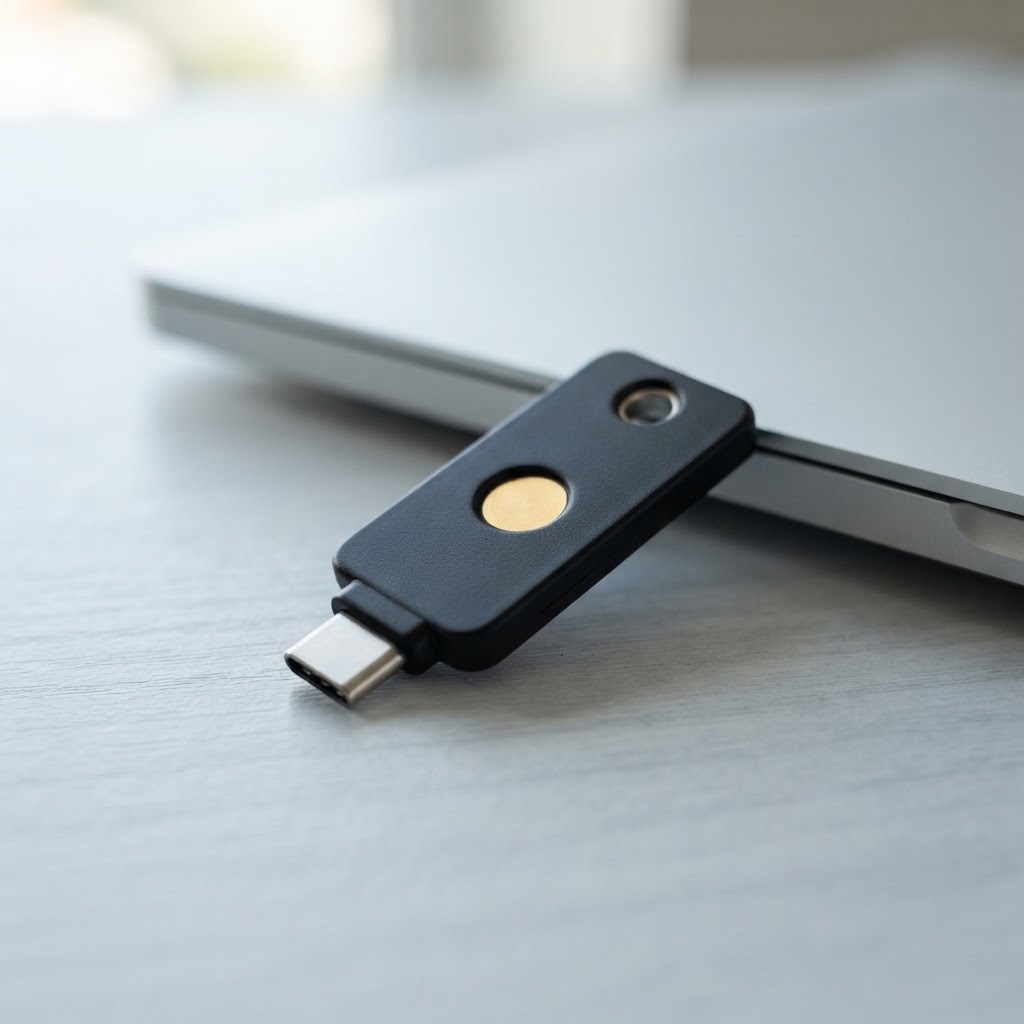
A FIDO2 security key is a small physical device, often similar in size to a USB memory stick. Instead of storing documents, it holds a secure way to prove it is you. Depending on the model, you plug it into your computer or tap it against a compatible phone, then unlock it with a PIN or fingerprint and touch the key when prompted.
It can be particularly useful if:
- Your phone is lost, broken or out of battery.
- You replace your phone and have not yet registered Authenticator on the new one.
- You do not want to use a personal phone for work authentication.
- You want an additional sign-in method that resists fake sign-in websites.
A security key is a separate way into your account, not a copy of your Authenticator app. It must be registered to your account in advance, and your organisation must allow it. Buying one after you have already been locked out will not restore access by itself.
Ask your IT provider for a compatible FIDO2 key before buying. The right connector, phone support and your company's security rules all matter. An ordinary USB memory stick will not work.
How to set up a backup security key
Once your IT provider has confirmed it is supported:
- Go back to Security info while you can still sign in normally.
- Select Add sign-in method and choose the security key or passkey option your organisation provides. Make sure you select a security key, rather than saving the passkey to a different device.
- Follow the prompts to connect or tap the key, set its PIN if required, and touch the key when asked.
- Give it a recognisable name and test a fresh sign-in using the key before putting it away.
Store your backup key somewhere secure, ideally separate from your phone. Do not share it or write the PIN on it. If it is lost, tell your IT provider so its registration can be removed. Some businesses choose to register a second key and keep it in a secure location.
Do not forget account recovery
Being able to sign in and being able to reset a forgotten password are not always the same thing. Ask your IT provider to check both before removing text messages.
Also, do not assume that backing up your phone or the Authenticator app will fully restore a work account. Microsoft says work and school accounts need to be signed in again after an Authenticator restore. Register and test your replacement phone before wiping the old one wherever possible.
A simple plan for your business
You do not need to become a security expert. You do need a plan that everyone can follow:
- Find out who still depends on text messages, including as a backup.
- Agree the right replacement with your IT provider, preferably a passkey or another phishing-resistant option.
- Register and test the new method before removing the old one.
- Give staff a suitable backup and clear instructions for getting help.
- Check password recovery as well as everyday sign-in.
A few minutes of preparation now can prevent a stressful lockout later.
Contact ITfinity if you would like help checking your Microsoft 365 setup, registering Authenticator or choosing suitable security keys for your team.
Sources and further reading
Guidance checked on 19 October 2026. Microsoft may update its timetable or setup screens, so check the current guidance with your IT provider before making changes.